What are you looking for?
Suggested Searches
Search History
Matched Contents
No Suggestions


Smart Switch

Switch to Galaxy, easily keep your memories.
Transfer contacts, photos, music, messages, and other data.
Smart Switch makes it easy to transfer data from your old phone to your new phone. (1)
Switch from Android, Blackberry, Windows Mobile, or iOS to Galaxy.
Whether you are switching from an iPhone to a Galaxy phone, or need to transfer data from an Android phone to a Galaxy phone, upgrading to a Galaxy smartphone is done in one seamless move with Smart Switch.

Other Platforms & Devices

New Galaxy Devices
Transfer what’s important
Need to know how to transfer contacts from an iPhone, move your photos from an Android phone, and make sure your music, videos, calendar events, and apps are on your new Galaxy phone.
Smart Switch will transfer your data and device settings. (2)
Easy and simple
Transfer data from your old phone to your new Galaxy phone via USB Cable, Wireless, external storage, or computer. Choose the method you feel most comfortable with. Everything else comes easy. (3)
Transfer content directly from your old phone wirelessly.
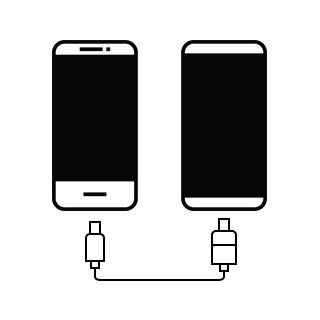
Transfer content directly from your old phone via USB cable.
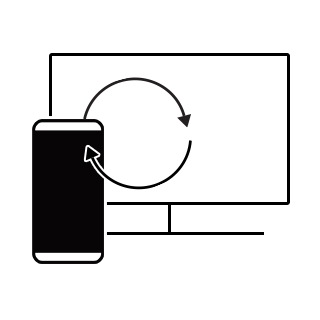
Transfer content from a PC to your new Galaxy phone.
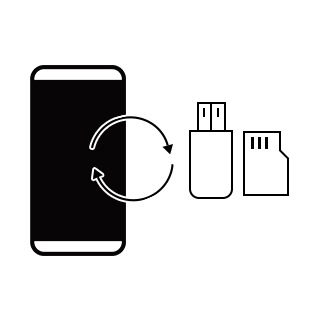
Backup and restore content using external storage.
Smart Switch PC/Mobile Spec
Smart Switch Mobile
A Samsung device with Android OS version 4.3 or later
Smart Switch for Windows PC
- OS
- Windows 7 or later.
- CPU
- Pentium 4, 2.4 GHz or higher.
- RAM
- 512MB or higher.
- Required Software
- User for Windows 7, 8, 10 OS N, KN version
- Microsoft Media Feature Pack
- Please download and install from the Microsoft site Download Media Feature Pack for Windows 7, 8 K, KN Download Media Feature Pack for Windows 10 K, KN
Smart Switch for Mac
- OS
- Mac OS X® 10.5 or later.
- CPU
- 1.8 GHz or higher.
- RAM
- 512MB or higher.
- Driver installation space
- 100MB or higher.
- MAC supported models
- Models released after 2013 * Note: Android OS version 4.1 or later
Switching to the new Galaxy phone
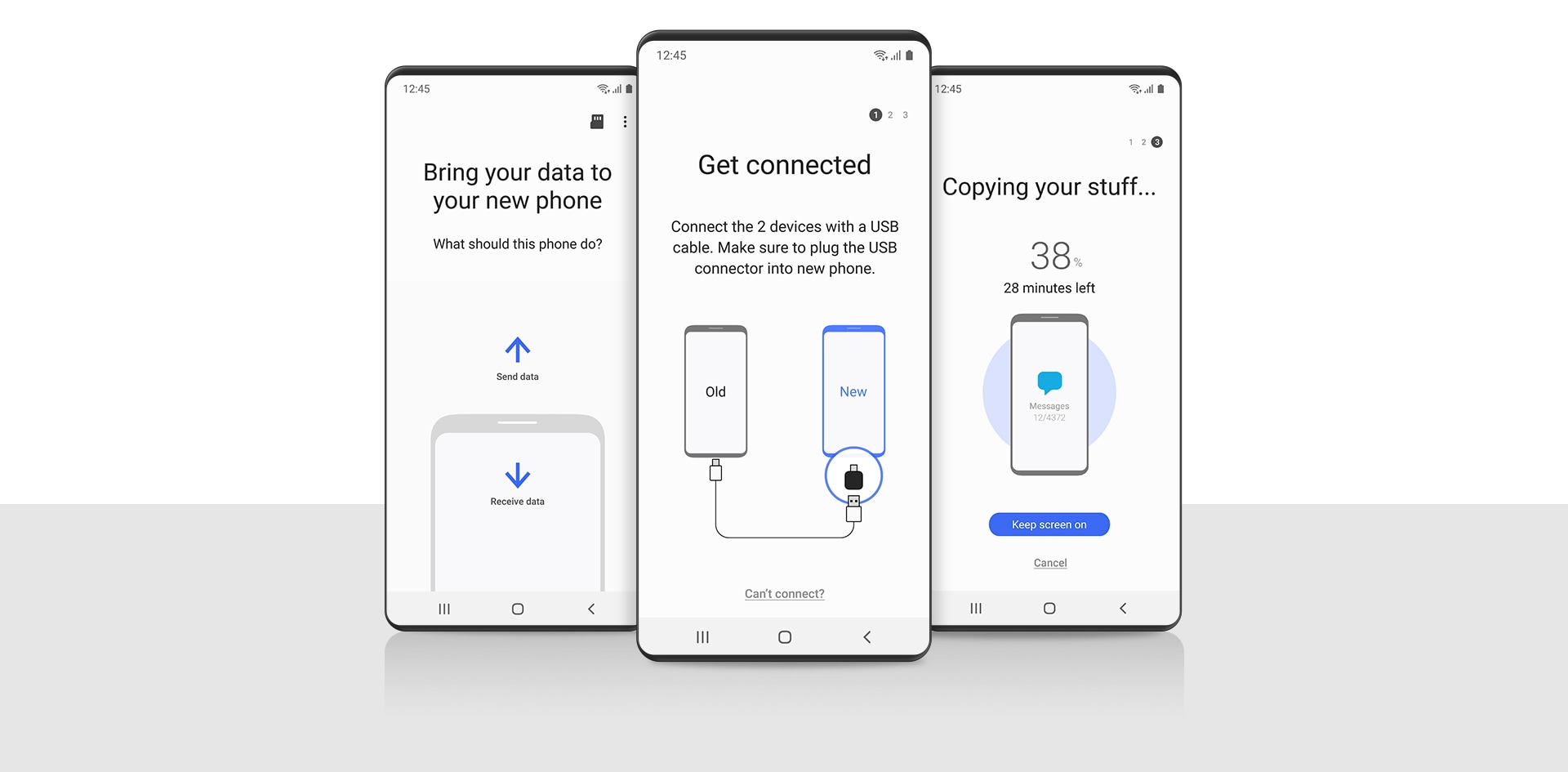
Using Smart Switch to transfer everything that’s important to you from your old phone to your new Galaxy phone is one seamless, worry-free process. (4)

Step 1
Connect your new Galaxy phone to your old device using the included USB connector and the cable from your old phone.

Step 2
Select the items you want to transfer to your new phone.

Step 3
Enjoy all of your favourite apps, music, contacts, and more without skipping a beat.
(1) If you do not have the USB connector, open Smart Switch Mobile in “Settings” on your new phone or download Smart Switch for PC/Mac. For a wired transfer, the device must be a Galaxy device with Android™ 4.3 or higher, iOS 5 or higher, BlackBerry® 7 OS or 10 OS or higher, or Windows Mobile OS8.1 or OS 10 or higher. Other devices are not supported for a wired transfer and owners of other devices must therefore use the Smart Switch wireless transfer option or download the Smart Switch PC program. If you do not have the USB cable from your old phone or the USB connector for a wired transfer to a GS8, then you can use the wireless options.
(2) Transferrable type of data and available contents transferred from non-Android OS to Galaxy may varies by its OS. To find more information, Please Contact Samsung HELP
(3) When transferring data from iCloud or other cloud services, a data connection is required.
(4) To avoid disruption in text messaging when transferring from iOS, please change your iMessage settings appropriately.
(5) Device and screen images simulated for illustrative purposes.

Click here to go to the download page.
Do you have more questions?


